Change your website by chatting
Ask for a website change — words, colours, sections — and confirm it; it lands in your draft, ready to publish.
AIAsk for one change: «Make the buttons dark green». Name the page if it is not the home page.
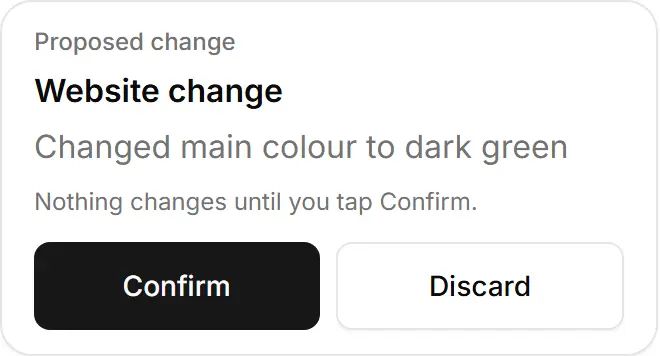
Check the Website change card.
Tap Confirm. It is saved as a draft.
Tap Open the editor, check the preview, then Publish.
Try asking
«Make the buttons dark green»
A real answer, from a demo store
I've prepared the change, so tap Confirm to apply it. It's set up as a change to the site's main colour (dark green), so other elements in that colour may turn green too, not only the buttons. It will be saved as a draft, and you can publish it from the editor.
«Change the home page heading to: Gentle dental care in Beirut»
A real answer, from a demo store
I've set up a change to make your home page heading "Gentle dental care in Beirut". Tap Confirm on the card to apply it. It will be saved as a draft, so you'll still need to publish it from the editor before it shows on your live site.
«On the FAQ page, make the answers shorter»
A real answer, from a demo store
I've set up a change that shortens the answers on your FAQ page. Tap Confirm on the card to save it as a draft, then publish it from the editor to make it live.
- Changes to products or the menu go live as soon as you confirm; everything else waits for Publish.
- Changed your mind? Undo it from History in the editor.
- It is the same assistant as Ask the assistant in the editor — the proposal shows there too, and can be applied once.
- It cannot create pictures in a chat; it tells you where the photo is changed.
Related
- Let it prepare changes: the Confirm cardAsk for a change and the assistant prepares it on a card; nothing happens until you tap Confirm.
- Ask AI in the website editorIn My website, tap Ask AI and say what to change; nothing is applied until you tap Apply.
- What the assistant costsA question costs 2 credits, once; a confirmed website change 1 more. See your balance and history in Credits & keys.