Change an order's status
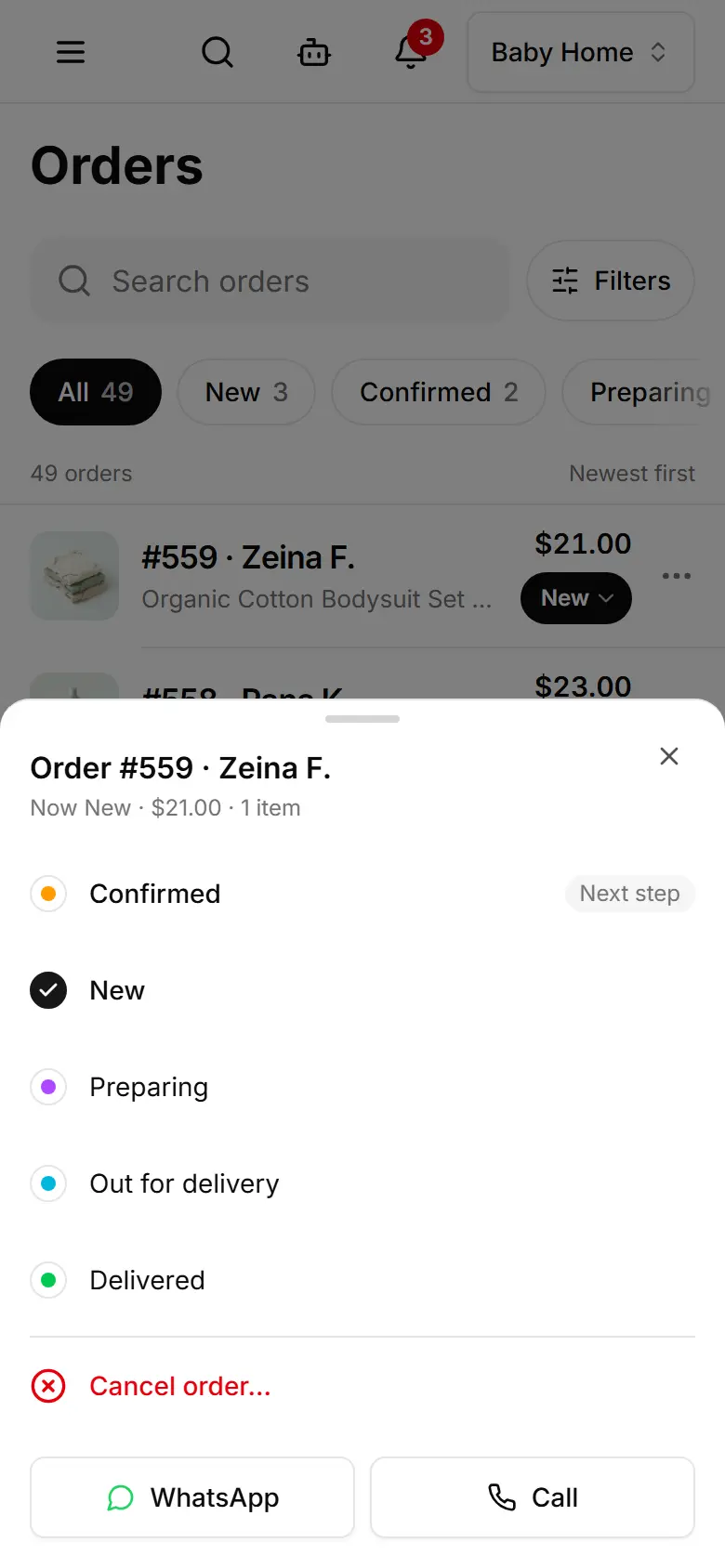
Move an order along in one tap; cancelling offers to put stock-tracked items back on the shelf.
| Status | What it means |
|---|---|
| New | Just placed — you haven't checked it yet. |
| Confirmed | You accepted it. |
| Preparing | You are getting it ready. |
| Out for delivery | On its way — the tracking link goes with the message. |
| Delivered | The customer has it; you can ask for a review. |
| Cancelled | It won't go ahead. |
Open the order and tap the black button — it names the next step (Start preparing, Send out for delivery, Mark delivered).
To jump to any status, tap the status chip and pick one; the usual one is tagged Next step.
To cancel, tap the status chip, then the red cancel row; keep the stock box ticked and tap Cancel order.
Related
- A new order arrived — what to doYou get an email (and a phone notification if you turned them on); open the order, check it and confirm it in one tap.
- Message the customer on WhatsAppOne tap opens WhatsApp with a message that matches the order's status, ready for you to send.
- Ask for a review after deliveryOnce an order is delivered, send the customer a link to rate it; the review waits for your approval.